Blockbench GeckoLib Plugin Setup
GeckoLib uses a custom Blockbench plugin to make and export models and animations.
Installation
To use the plugin, you'll need to install it from the Blockbench plugins browser:
- Click
File - In the dropdown menu, click
Plugins - In the popup window that opens; swap to the
Availabletab, and search forGeckoLib - Find the
GeckoLib Models & Animationsplugin, and click the+ Installbutton on the right.
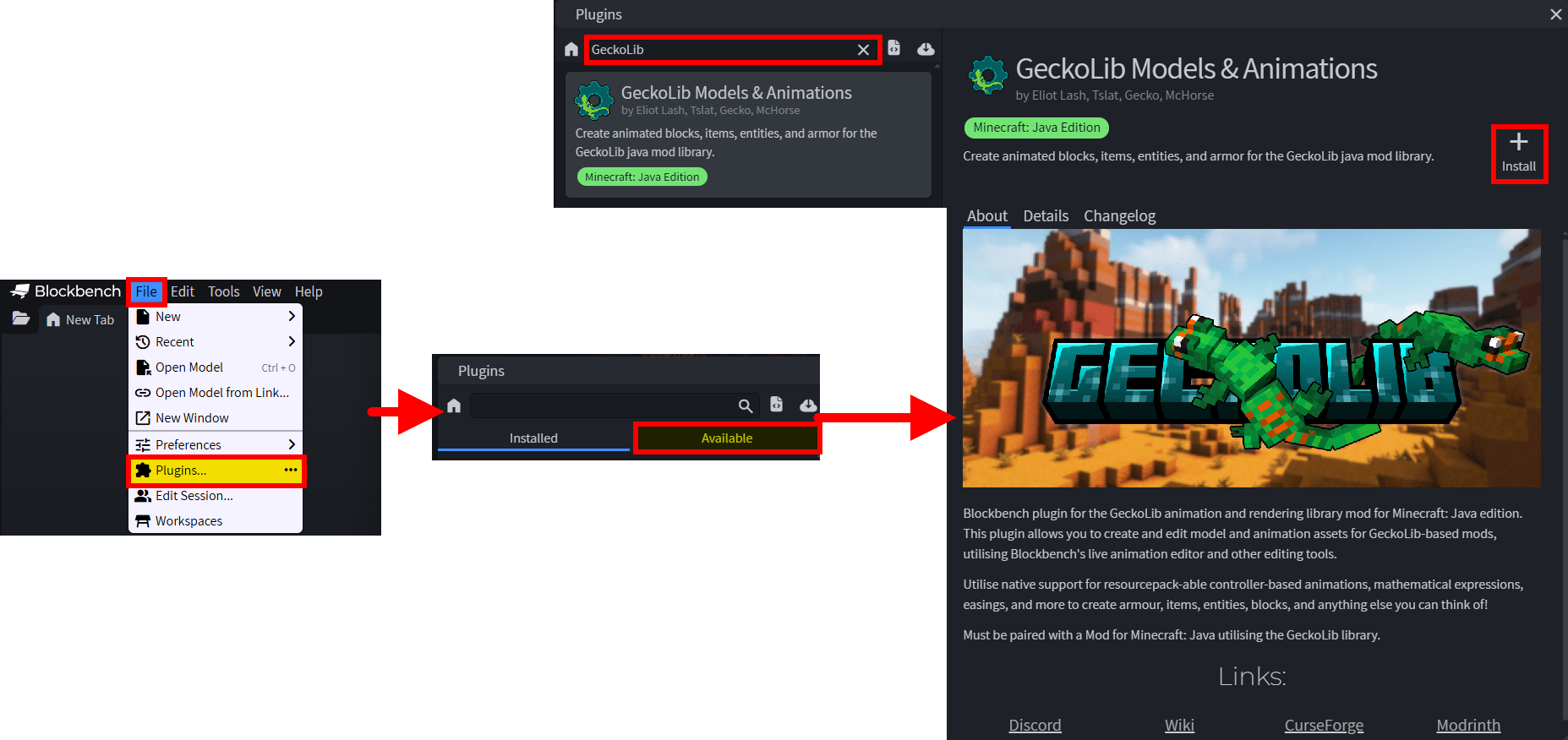
Then you can close the plugins window, and you're ready to go!
See the additional settings section below for additional options; or move to the Plugin Usage page to learn how to use the plugin.
Additional Settings
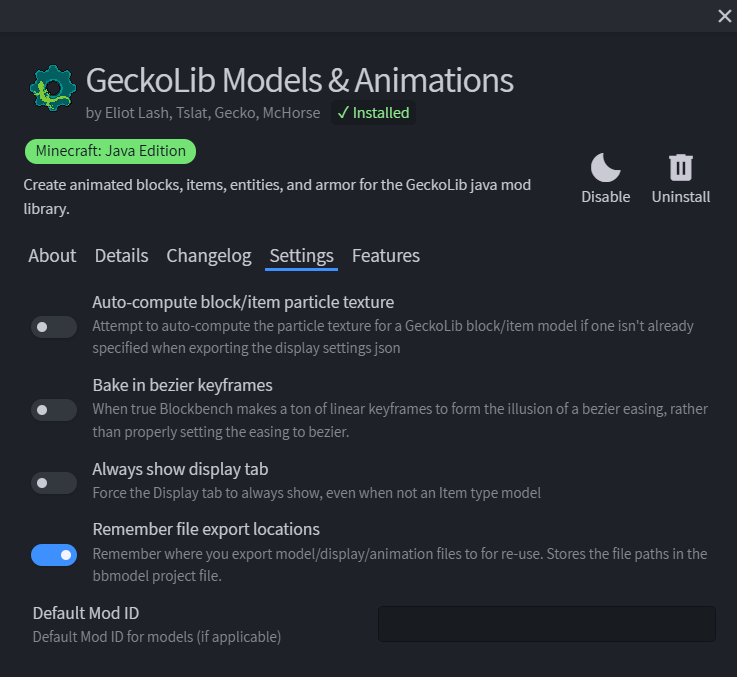
The GeckoLib Blockbench plugin comes with a few additional optional settings that can be managed if wanted.
These settings can be found in the Settings tab of the GeckoLib plugin window.
| Setting | Type | Description |
|---|---|---|
Auto-compute block/item particle texture | Toggle | When exporting item display settings from Blockbench, attempt to auto-create the particle texture reference for Minecraft to use |
Bake in bezier keyframes | Toggle | When true, forces Blockbench to export bezier-interpolated keyframes as discrete keyframes using linear interpolation, instead of bezier interpolation |
Always show display tab | Toggle | Force the display settings tab to be always visible, regardless of GeckoLib model type |
Remember file export locations | Toggle | When true, Blockbench will remember the filepath of exported assets, so that it can automatically re-locate that path when exporting again. Puts the full filepath in the .bbmodel file |
Default Mod ID | Text | Set a default Mod ID for geckolib models, used by the plugin for exporting texture and asset paths |