How to use the Blockbench plugin
With the GeckoLib plugin installed in Blockbench, you can create GeckoLib-type models and animations.
Making a Model
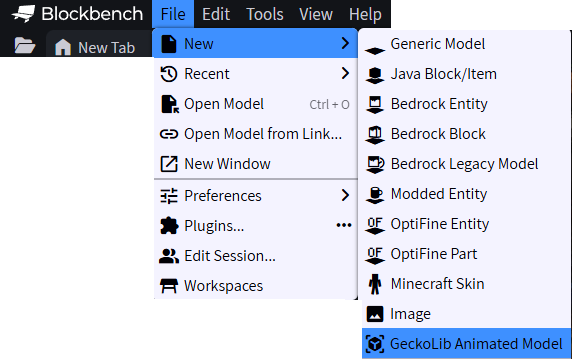
Creating a new GeckoLib model in Blockbench is the same as creating any other model; Click File -> New Project and select GeckoLib Animated Model from the dropdown.
Making an Armor Model
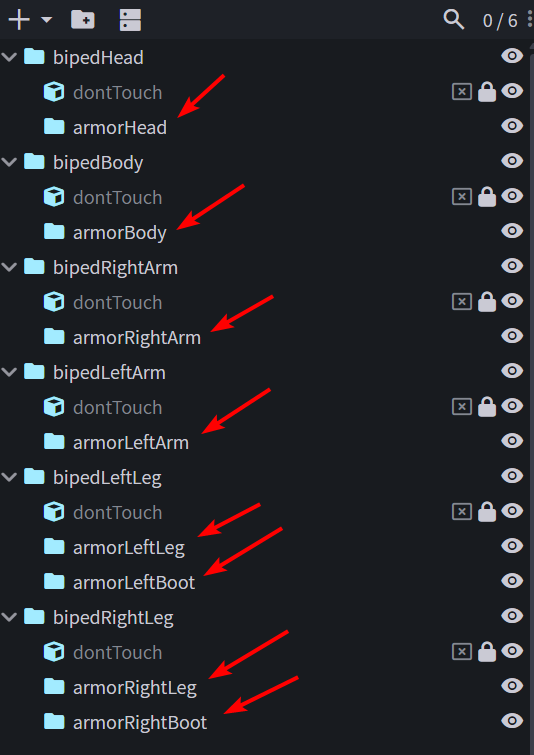
If you're making a GeckoLib armor model, when you select the Model Type in the new project popup window, select Armor.
This will create a new GeckoLib armor model template with the correct bone positions and names.
From there, ensure you ONLY add bones and cubes into the armor prefixed bones.
Model Properties
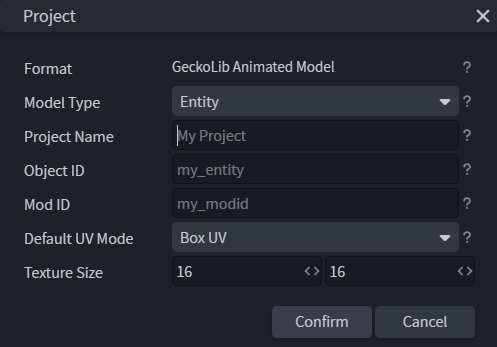
When creating a new model, you are presented with a popup window where you can set the model's properties.
These properties can also be changed at any time by going to File -> Project.
Available Properties – Click to expand
The following properties are available for GeckoLib models:
| Property | Description |
|---|---|
| Model Type | The type of model this project is for. Determines initial project setup and some additional properties |
| Project Name (Optional) | The name of this model project. Used to help Blockbench suggest file names for you when saving. E.G., Green Gecko |
| Object ID (Optional) | The id of the object this model is for. Used to help Blockbench suggest file names for you when exporting. E.G., green_gecko |
| Mod ID (Optional) | The modid of the mod this model is for. This will be used to calculate asset export paths for your mod to use, if needed |
| Default UV Mode | The default UV mode your model cubes will use for UV mapping. Leave this as default unless you know what you are doing |
| Default Texture Size | The default pixel size of the texture your model will use. Leave this as default unless you know what you are doing |
Video Tutorials
See below for some in-depth video tutorials on how to use Blockbench to make GeckoLib models.
Blockbench also has a Wiki with more detailed tutorials and guides.
Blockbench Basics

GeckoLib Model Basics
Converting an existing model
If you have an existing Blockbench model that you want to convert to GeckoLib, Blockbench supports model conversion.
To convert your model, open your existing model in Blockbench, then go to File -> Convert Project, and select GeckoLib Animated Model from the dropdown.
After converting the model, it is recommended that you check and adjust the model properties of your newly converted model to ensure it's correct.
See the Model Properties section for more information.